Antmicro’s open source Renode simulation framework can be interacted with in many ways: typically, a console-like window, an inline console for headless and remote connections, automated tests via Robot and other systems, as well as a range of various API layers. While a CLI-oriented flow is great for task automation and efficiency, Renode is able to gather insights from the simulation that are better presented in a graphical way. These could potentially include live graphs of input and output values, e.g. sensors, PWM or LEDs, CPU or memory usage inspection, and live execution traces.
In this article we present a new GUI for Renode, describing the initial features, usage instructions, and planned future improvements. We will also show how it integrates with the System Designer portal for a comprehensive and interactive development experience that combines hardware, software and simulation workflows in a unified manner.
Launching the new Renode GUI
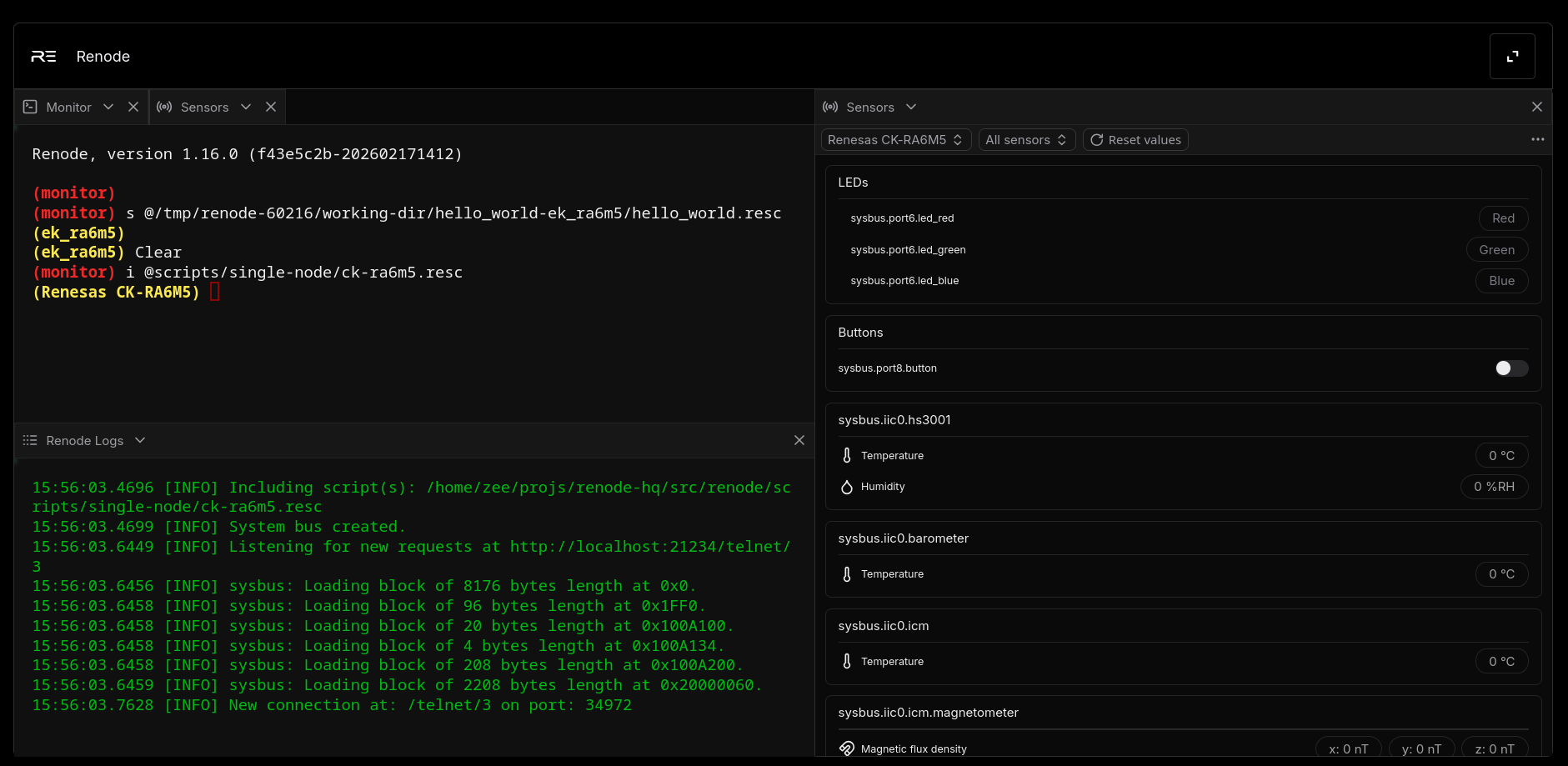
The proposed Renode GUI is available as a tightly-integrated application using web technologies, combining multiple aspects of Renode, such as Monitor, Sensors, Renode Logs, and UARTs, into a single viewport. You can move them around and change their size.
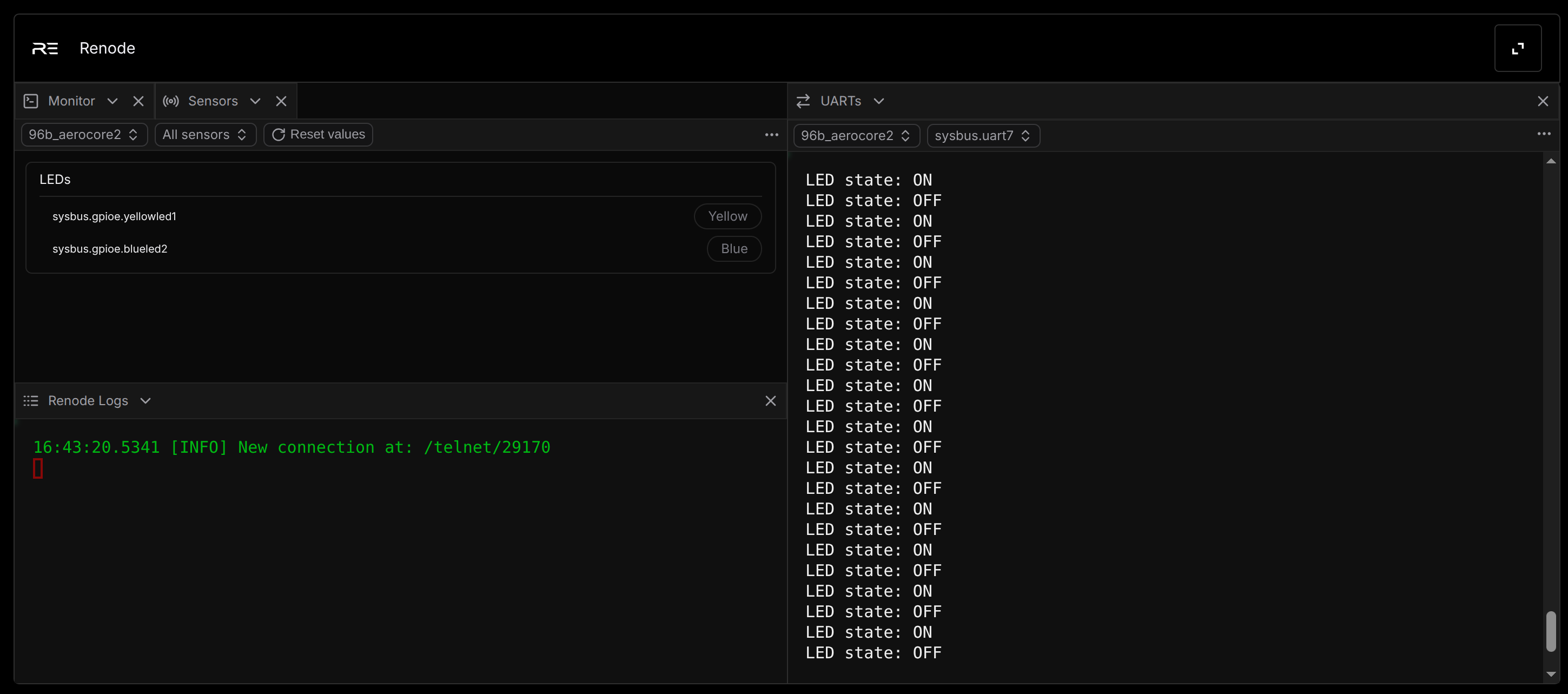
The GUI communicates with Renode through a Websocket API. To expose this API (that is also used to integrate with VSCode), until now, a separate Websocket server has been needed. However, we’ve integrated it with Renode so that downloading and installing it is no longer required.
The GUI in the form of a desktop application is based on the Neutralinojs development framework. As a result, it can also be easily integrated with WebUI systems, such as our System Designer.
To launch the new GUI, download Renode, and, in the terminal, run the renode --ui command. An interactive GUI will show up with the Monitor and Renode Logs panes. For the additional tabs to appear, load a simulation script for a supported device, for example, for the Renesas Electronics RA6M5 Evaluation Kit. To do this, execute the start @scripts/single-node/ck-ra6m5.resc command in the Monitor pane.
To use the GUI in System Designer, follow the steps below:
- Download Renode.
- In the terminal, run the
renode --server-modecommand. - Go to System Designer and select one of the compatible boards marked with the sign
Renodeon the right side (such as STMicroelectronics Nucleo F401RE). - Scroll down until you see the
UART Outputconsole window, and click theRun locallybutton. You can now see Renode output being printed in the GUI windows.
Similarly, you can open the VSCode interface by selecting the Run in IDE option instead of Run locally, both of which are next to each other.
Remember that the new GUI doesn’t substitute the current way of using Renode. It’s an additional interface you can make use of, while automation through scripts is still the default way to go with our simulation framework.
Future Renode GUI additions
The current version of the GUI offers a sneak peek into the possibilities of this approach. The following features are being assessed and planned to appear in the future:
- Adding input and output visualizations, e.g. for sensor data, in the form of graphs.
- Providing interactive visualizations of various details of the simulation, e.g. CPU register previews and decompiled memory dumps of currently executed code.
- Introducing an extended predefined window layout, with an additional option to create, save, and restore multiple custom layouts.
Since the GUI and our VSCode implementation use the same protocol, we might also consider integrating the former with the latter.
Explore different possibilities of Renode operation
The GUI described in this note has brought about an additional method of interaction with the Renode framework. While still experimental, the new GUI provides you with an option to convert the usual terminal output into an aesthetic viewport with just a few commands. What’s more, we can help you embed the GUI in your systems for accelerated development of complex multi-node systems.
Antmicro can help you debug and test your software through your favorite tools thanks to Renode’s smooth integration with external IDEs and toolkits, for which we offer commercial support. If you aren’t yet one of the users, be sure to check the growing list of those who already are and the possible usage scenarios. For any inquiries, write to us as contact@antmicro.com.